Lab 7: Building A Coding Inquiry Portfolio
General Description
Welcome to your final lab! In this session, you will build a central coding portfolio to
house the
three primary projects you developed this semester: the card gallery, the click-and-point game, and
the data dashboard.
You will achieve this by coding a homepage featuring interactive cards to showcase your work, and
implement global
navigation using an App Bar and a Navigation Drawer.
Learning Objectives
- Implement global navigation logic to allow users to switch between different hosted projects.
- Reflect on what you learned by writing project descriptions that highlight specific technical skills.
Table of Contents
- Pre-requisite: Setup Your Project
- Project Audit: Lab Projects Completed and Published
- Structuring the Portfolio Content
- Creating the Homepage Gallery
- Building the Navigation Menu
- Retrofitting: Connecting the Suite
- Challenge: The Collective App
- Wrap Up & Sharing Your Work
Pre-requisite: Setup Your Project
- Create a new folder for this final lab.
- Inside your new folder, create the
app.jsandindex.htmlfiles with their starter/boilerplate code. Refer to Lab 2, section 3. Setup Starter Vuetify Code to complete this step.
Project Audit: Lab Projects Completed and Published
Before you start building your portfolio, you must ensure your previous lab projects are completed and published:
- Project 1 (labs 2 & 3): Card Collection
- Project 2 (labs 4 & 5): Point-and-Click Game
- Project 3 (lab 6): Data Dashboard
- Verify that your 3 previous projects are completed and published to GitHub Pages. Refer to Lab 3, Section 7. Publishing Your Gallery With GitHub Pages to complete this step.
- Keep your URLs ready. You will need the links ending in
.github.ioto populate your data array in the step below.
Structuring the Portfolio Content
In this step, you will organize your content through an array of objects that will drive both the homepage gallery and the navigation menu.
- In your
app.js, create an Array of Objects calledprojectscontaining the details for your three completed labs. The example below includes fields liketitle,description,whatILearned,image, andurl. Feel free to adjust as you see fit.
const projects = [
{
title: "Stranger Things Card Collection",
description: "A card gallery showcasing characters from the series Stranger Things.",
whatILearned: "In this lab I explored how to write JavaScript variables, data types, and objects, and display them within a card using the Vuetify library.",
image: "images/project1.png",
url: "https://artssci.github.io/labs/completed/lab3/"
},
{
title: "The Botanist Challenge Game",
description: "In this game, the player consults a reference card to learn a plant's needs and then click the correct actions in the right order to help it grow.",
whatILearned: "I learned about functions, conditional logic, and reactivity to handle changes in the user interface and validate user choices.",
image: "images/project2.png",
url: "https://artssci.github.io/labs/completed/lab5/"
},
{
title: "Immigration Trends Data Dashboard",
description: "This is a Data Dashboard visualizing the 2025-2027 Canada Immigration Trends.",
whatILearned: "I practiced using Vuetify components like Sparkline, Stepper, and Data Table to transform complex datasets into an interactive experience.",
image: "images/project3.png",
url: "https://artssci.github.io/labs/completed/lab6/"
}
]
Creating the Homepage Gallery
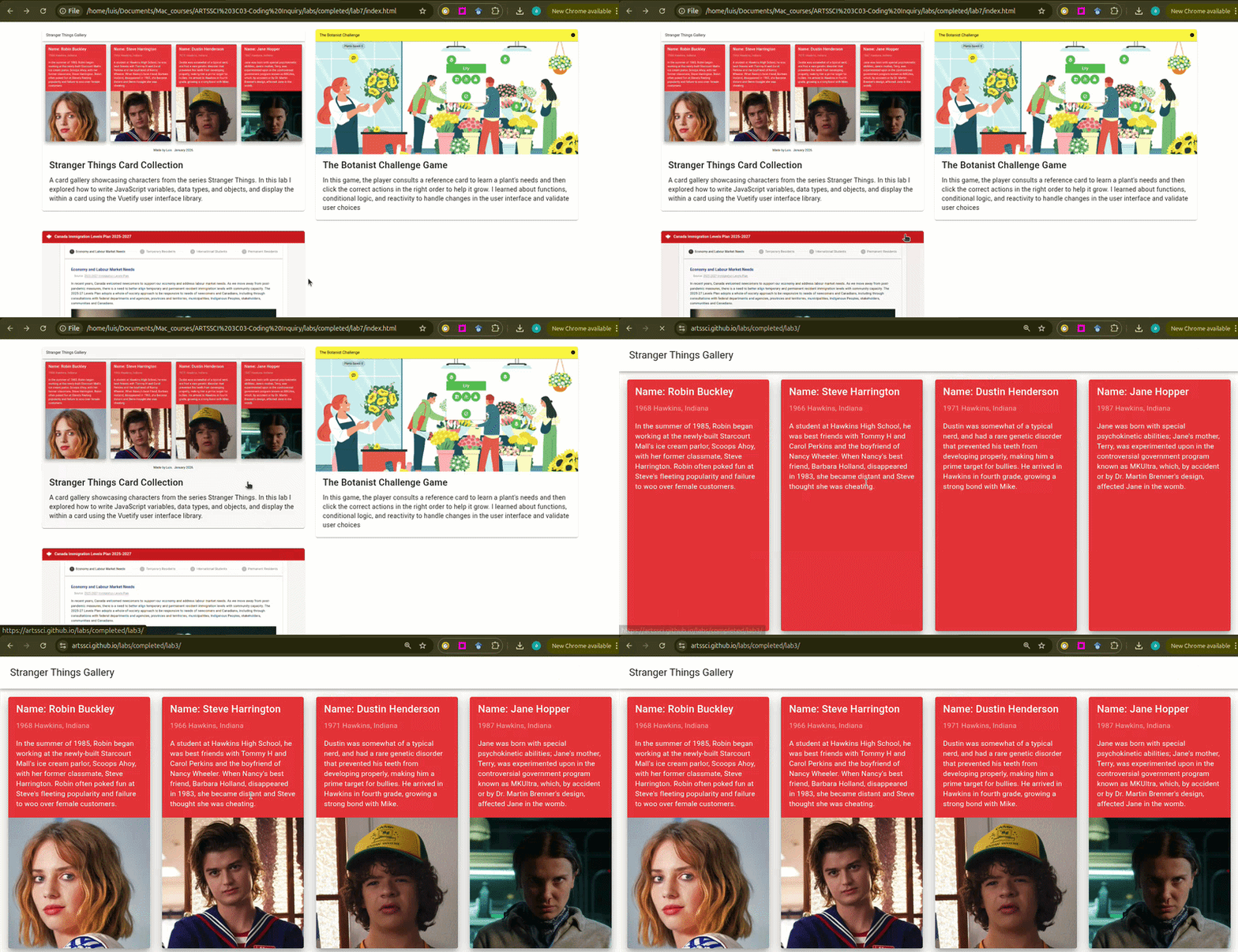
In this step you will combine the v-for loop with Vuetify's grid system
(v-row and v-col),
to generate a responsive layout that displays every project stored
in your data array.
-
Use
v-row,v-col, andv-forto generate av-cardfor each project in your array. Refer to Lab 3, section 3. Generating Cards with the v-for Loop and section 4. Styling and Layout for the Card Gallery to complete this step. - Once you have created the cards, use the
:hrefcommand on thev-cardcomponent so that clicking anywhere on the card opens the project. -
When you add the colon (
:href), it becomes dynamic. This tells Vuetify to look into yourapp.jsand read the specific URL for each project in your array.
<v-card :href="item.url">

    <!-- Card content goes here -->

</v-card>
href attribute specifies the URL (web
address) of the page the link goes to. By adding this to your card, you make the entire card
clickable.
Building the Navigation Menu
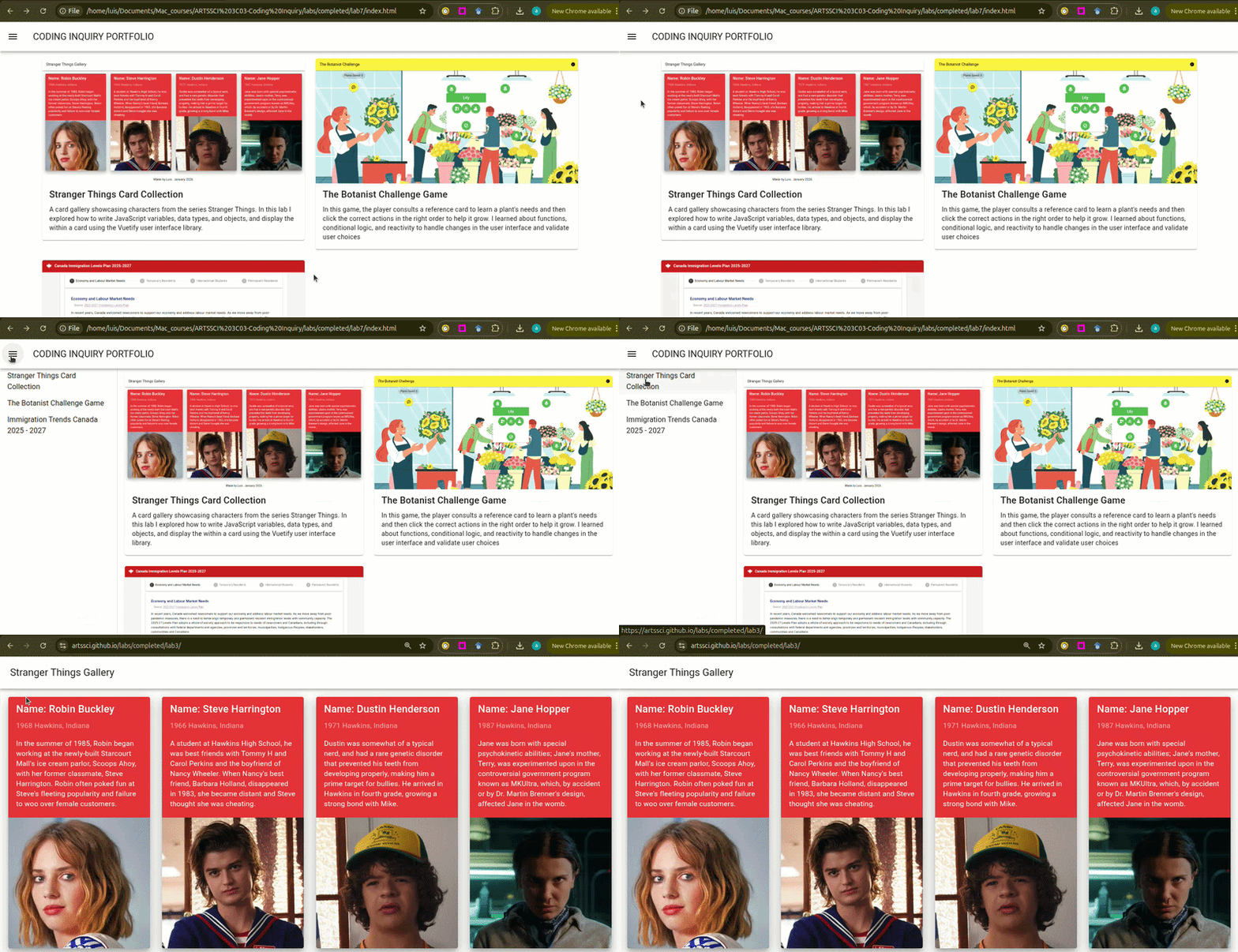
In this step, you will code a v-app-bar for your portfolio's title and a
v-navigation-drawer for easy access to your projects. A navigation drawer is
a side panel that provides a way to organize sections, pages, or modules of an app. It
stays hidden until the user clicks the menu icon.
Adding Open/Close Functionality
- In
app.js, create a reactive variable calledopenDrawerand set it tofalse. - Create a function called
toggleDrawerthat allows theopenDrawervariable to toggle betweentrueandfalse(i.e., open or close). Refer to Lab 3, Section 3.2 Adding Toggle Functionality to Open/Close the Reference Card, to complete this step.
Create the Navigation Drawer
- Create a navigation drawer using
v-navigation-drawer. - Inside the drawer, use a
v-list-itempaired with av-forloop to display each project's title. - Use the
:hrefattribute to ensure each list item links to the correct project URL. - Finally, connect the drawer to the variable
openDrawerfrom above, usingv-model.
<v-navigation-drawer>
</v-navigation-drawer>
<v-navigation-drawer>
    <v-list-item v-for="item in projects" :key="item.title">
    {{ item.title }}
    </v-list-item>
</v-navigation-drawer>
<v-navigation-drawer>
    <v-list-item v-for="item in projects" :key="item.title" :href="item.url">
        {{ item.title }}
    </v-list-item>
</v-navigation-drawer>
<v-navigation-drawer v-model="openDrawer">
    <v-list-item v-for="item in projects" :key="item.title" :href="item.url">
        {{ item.title }}
    </v-list-item>
</v-navigation-drawer>
Create an App Bar
The app bar sits at the top of the page and holds the "hamburger" menu icon that triggers the drawer.
- In
index.html, add av-app-bar, av-app-bar-nav-icon, and av-app-bar-title. - Add an
@clickcommand in thev-app-bar-nav-iconto call yourtoggleDrawerfunction created above. By clicking this icon, you will open or close the navigation drawer. - Finally, once your homepage is ready, publish it to GitHub Pages and save the URL; you will need it for the next step. Refer to Lab 3, Section 7. Publishing Your Gallery With GitHub Pages.
<v-app-bar>
    <v-app-bar-nav-icon></v-app-bar-nav-icon>
    <v-app-bar-title>Coding Inquiry Portfolio</v-app-bar-title>
</v-app-bar>
<v-app-bar-nav-icon @click="toggleDrawer"></v-app-bar-nav-icon>
Retrofitting: Connecting the Suite
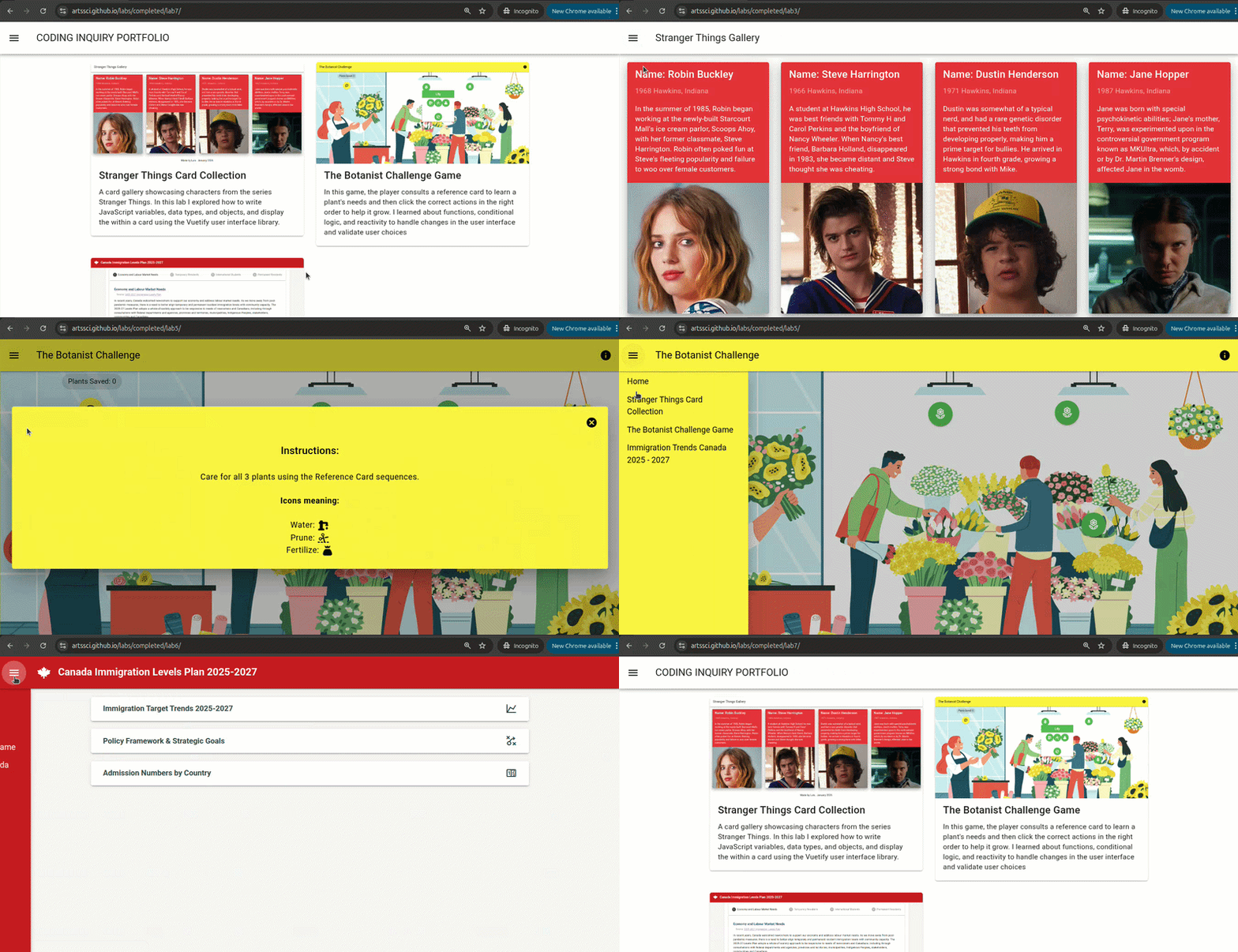
Retrofitting is the process of adding new features or technology to an older system. In this step, you will update your previous projects with your new navigation menu so users can jump between your projects and your homepage with ease.
- Open your previous Lab 3, Lab 5, and Lab 6 code files.
- Copy the
projectsarray and thetoggleDrawerfunction from your Lab 7app.jsinto theapp.jsfiles of your previous labs. - Copy the
v-app-barandv-navigation-drawercomponents into each of your project HTML files. - Inside the
v-navigation-drawerof your project pages, add av-list-itemabove your loop that links back to your main Portfolio homepage.<v-navigation-drawer v-model="openDrawer"> <v-list-item href="https://artssci.github.io/labs/completed/lab7/">Home</v-list-item> <v-list-item v-for="item in projects" :key="item.title" :href="item.url"> {{item.title}} </v-list-item> </v-navigation-drawer> - Re-publish your projects by uploading your files to the same repositories on GitHub.
Optional Challenge: The Collective App
Add a 4th item to your projects array for your module of our Global Maritime Commerce and Whale
Risks Collective App. To complete this step, you would need to publish it to GitHub.
Wrap Up & Sharing Your Work
Congratulations! You have successfully built a portfolio showcasing your coding inquiry projects. Here is the breakdown of the skills you practiced in this lab:
- Global Navigation Logic: You successfully implemented a
v-app-barandv-navigation-drawerfor users to navigate between multiple applications/modules. - Technical Reflection: You translated your coding experiences into descriptive narratives, highlighting the specific programming tools and logic you mastered throughout the term.